Basecamp Resorts
Everwild Spa
Grizzly Ridge
Pine & Peaks
Revy Suites
Timber Peaks
Wildwood Spa
BCR – How to edit Basecamp Property Pages
How to Edit Property Pages (ACF Fields)
Property pages on BasecampResorts.com are managed using ACF (Advanced Custom Fields). Follow the steps below to safely update property content.
Step 1: Log In to WordPress
Go to the WordPress Dashboard
Navigate to:
https://basecampresorts.com/wp-admin
Enter your login credentials
Step 2: Open the Property Page
In the left-hand menu, click Pages
Select All Pages
Look for the property page you want to edit
Click Edit (do NOT click “Edit with Elementor”)
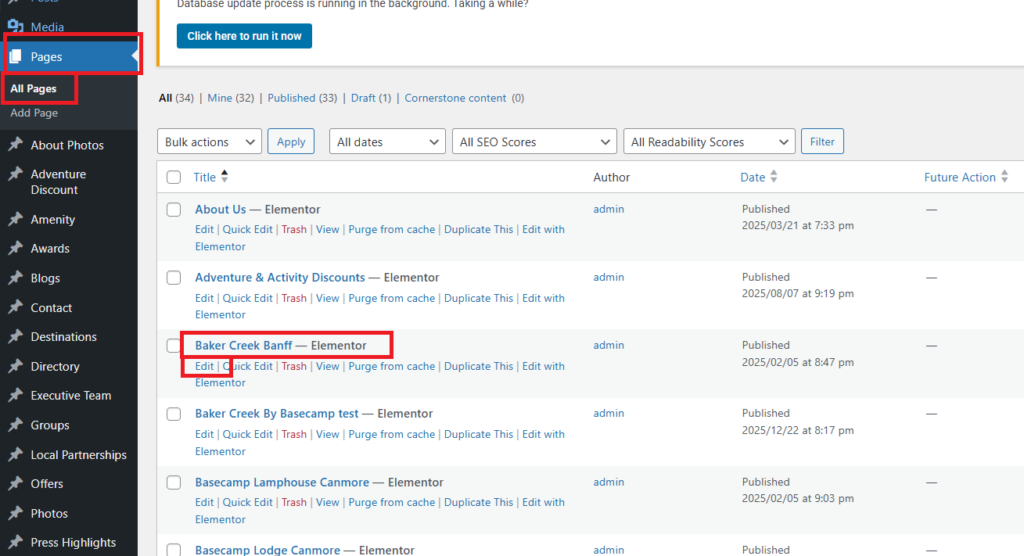
Step 3: Locate the ACF Fields
Scroll down below the page editor.
You will see a section containing ACF fields used to control the property page content.
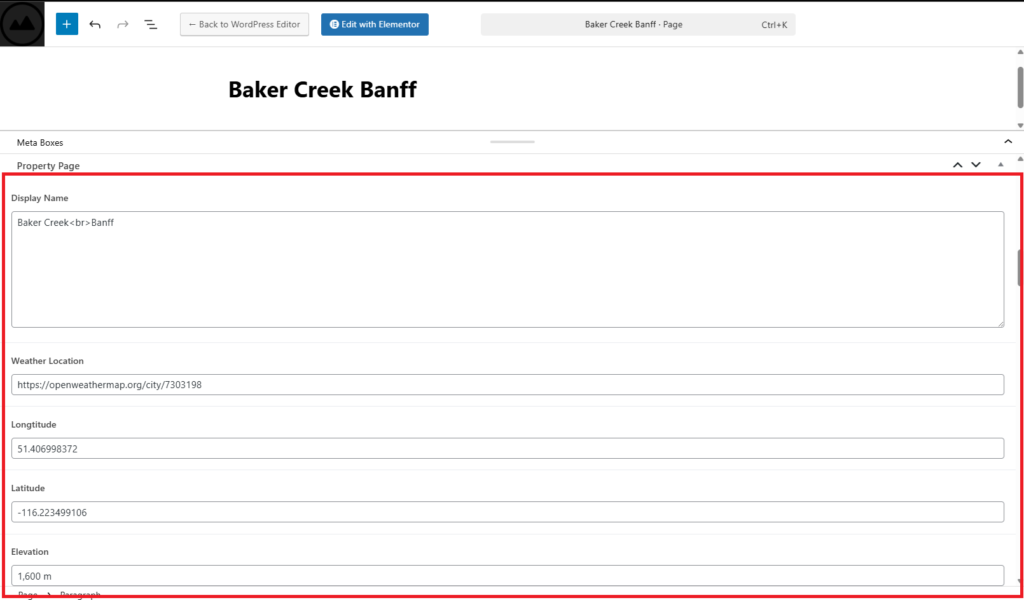
Step 4: Edit the ACF Fields
Property Information
Display Name
The public name of the propertyWeather Location
Location name used for weather displayLatitude (for weather API)
Longitude (for weather API)
⚠️ Must be accurate for correct weather dataElevation
Property elevation (used for display or reference)
Booking & Availability
Availability Link (WebRez)
Booking URL used for availability and reservationsWebRez (URL)
Additional booking or reservation link (if applicable)
Header & Media
Header Background Video (URL Video)
Video URL displayed in the page headerHeader Background Image
Primary header imageSecondary Header Background Image
Backup or alternate header image
Page Content
Welcome to…
Main heading textWelcome to… (Highlight)
Highlighted or emphasized portion of the headingWelcome to Sub Heading
Supporting subtitle textDescription
Main descriptive content for the property
Featured Section
Pick Your Mountain Haven Heading
Pick Your Mountain Haven Heading (Highlight)
Pick Your Mountain Haven Description
Controls the featured section highlighting the property experience
Gallery
Gallery
Image gallery displayed on the property page
Add, remove, or reorder images as needed
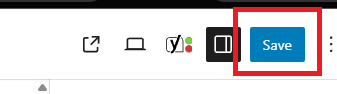
Step 5: Save Your Changes
Scroll back to the top or bottom of the page
Click Update
Wait for the confirmation message
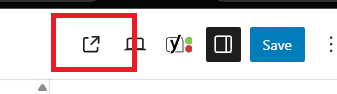
Step 6: Review the Page
Click View Page
Refresh the page
Confirm all updates appear correctly
Important Notes
-
Only edit fields you recognize
-
Do not remove required fields
-
Incorrect latitude/longitude will break weather display
-
Booking links must be valid URLs